

Quick Answer: Canva AI Shopee product photos work best as a controlled editing workflow, not a shortcut to guaranteed clicks. Use Canva to clean backgrounds, build gallery visuals, add verified callouts, and keep designs consistent. Do not use AI edits that change the product, hide flaws, or add props that buyers will not receive.
Canva is useful for Shopee sellers because it combines design templates, background cleanup, text layouts, and AI-assisted image editing in one workspace. That convenience can improve your listing workflow, but it can also create misleading product images if you accept every AI output without checking it.
This guide shows a safer way to use Canva AI Shopee product photos for Singapore, Malaysia, the Philippines, Thailand, and Indonesia. The goal is clear product presentation, not over-edited images that disappoint buyers.
Canva AI Shopee Product Photos: Safer Workflow
Start with the image role. Your cover image should make the actual product easy to inspect. Gallery images can show use cases, scale, packaging, size details, or campaign benefits. Canva can support both, but the editing rules should be different.
| Image slot | Good Canva use | Risk to avoid |
|---|---|---|
| Cover image | Clean background, sharp crop, accurate product color. | Heavy lifestyle scene that hides the item. |
| Gallery image | Use-case scene, size reference, detail crop, care note. | Props that imply accessories are included. |
| Infographic | Verified material, dimensions, warranty, or bundle contents. | Fake badges, unsupported claims, or tiny text. |
| Campaign image | Voucher, bundle, or 9.9 and 11.11 message that matches the offer. | Expired discount text or unclear conditions. |
What to Prepare Before Editing
Good AI editing starts with good source material. If the raw image is blurry, dark, or the wrong variant, Canva may make it look cleaner without making it more accurate.
- Raw product photos that match the exact SKU and variant.
- Product facts such as material, size, weight, color, care, and what is included.
- Current Seller Centre performance baseline for the listing.
- Brand colors and simple fonts if your store needs a consistent look.
- Category-specific image rules from Seller Centre.
If you do not know a claim, leave it out of the image. Do not let a template or AI text generator invent a benefit for you.
A 5-Step Canva Workflow for Shopee Sellers
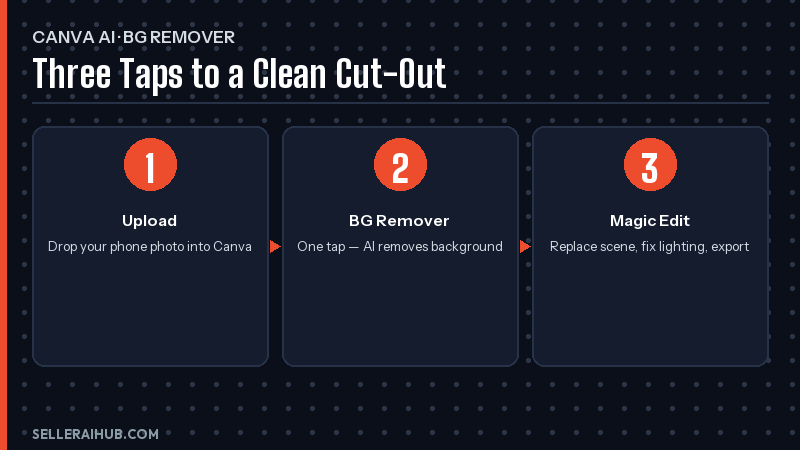
Step 1: Clean the background without changing the item
Use background removal or manual cleanup to make the item easier to inspect. Check edges around hair, fabric, transparent packaging, jewelry, straps, and reflective surfaces. Restore details if the AI removes part of the real product.
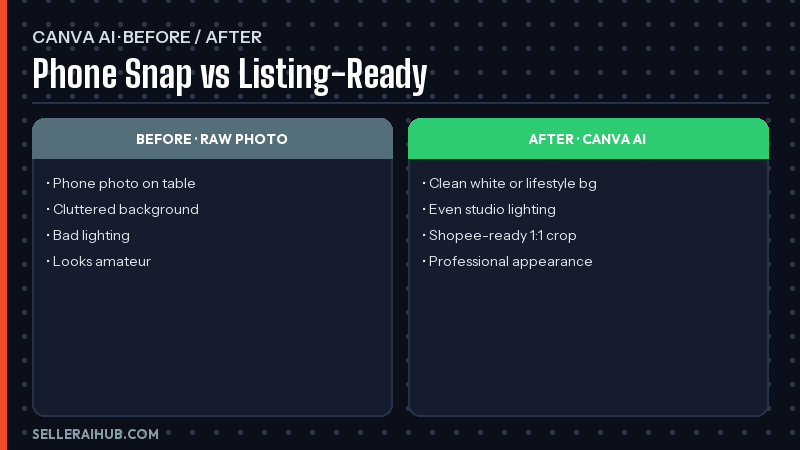
Step 2: Build a product-first cover
For the cover, keep the product large, centered, and truthful. Avoid crowded banners, tiny labels, and heavy props. The buyer should know what is being sold in one glance on mobile.
Step 3: Use AI scenes only for gallery support
AI scenes can help explain how a product is used. They are better as gallery support than as the main proof image. A skincare bottle in a bathroom scene is usually fine. A scene that changes bottle size, label, texture, or included accessories is not.
Step 4: Add only verified text callouts
Use text for facts buyers need: size, material, compatibility, care, what is included, warranty, or local delivery notes. Keep it large enough to read on mobile. Remove claims such as “best”, “fastest”, or “premium” unless you can support them.
Step 5: Export, upload, and measure one change
Export in a format accepted by your listing workflow, then preview the page on mobile. Record the edit date and what changed. Review impressions, CTR, conversion, returns, and buyer questions after 7-14 days.
Canva Free vs Paid: What to Check
Canva features, limits, and prices can change by country and account type. Check Canva’s current pricing and feature pages before planning a workflow around any specific tool.
| Need | What to verify in Canva | Seller decision |
|---|---|---|
| Background cleanup | Whether your account has access and whether exports include limits. | Test on tricky products before bulk use. |
| AI image edits | Which AI apps or Magic Studio features are available in your region. | Use only when output keeps the SKU accurate. |
| Resize and templates | Whether resizing, brand assets, and templates fit your workflow. | Use templates for consistency, not clutter. |
| Team workflow | Storage, sharing, brand controls, and approval process. | Upgrade only if it saves real editing time. |
Shopee Image Checks Before Upload
Rules can vary by category and market. Use Seller Centre as the final authority. As a safe baseline, keep images clear, product-focused, realistic in color, and free from misleading overlays or props.
- The image matches the exact variant selected in the listing.
- The product is not stretched, recolored, or reshaped.
- The cover image is easy to understand on mobile.
- Text callouts are factual, current, and readable.
- Any lifestyle scene does not imply extra items are included.
- Campaign badges match the live offer and date.
For broader image rules, review Shopee’s Mall Listing Guidelines. For Canva-specific details, check the official Canva site and your account’s current feature access.
How This Fits Your Listing Workflow
Canva helps with presentation, but images are only one part of listing quality. Pair this workflow with AI product photo tool for Shopee, rank higher on Shopee search, and write Shopee product description with AI.
Frequently Asked Questions
Can I use Canva AI Shopee product photos as my cover image?
Yes, if the image clearly and accurately shows the real product. For most sellers, a clean product-focused cover is safer than a heavy AI lifestyle scene.
Is Canva free enough for Shopee images?
It depends on the features available in your account and how many images you edit. Check Canva’s live plan details, then test with a few listings before changing your whole catalogue.
Can AI scenes mislead buyers?
Yes. AI scenes can imply scale, texture, packaging, or included accessories that are not true. Use them only when they help explain the real product without changing expectations.
What should I measure after changing images?
Track impressions, CTR, conversion, returns, and buyer questions. If clicks rise but conversion falls, the image may be attracting attention without setting the right expectation.
Should I add text to product images?
Add text only when it helps buyers understand verified facts. Keep it short, readable on mobile, and consistent with the listing title, description, and actual product.
Final Takeaway
Canva AI Shopee product photos can make your image workflow faster and more consistent. The safe path is to improve clarity without changing reality: clean the product, support it with truthful gallery visuals, and measure the result in Seller Centre before scaling the style across your store.
💬 Join the Discussion
Got a question or seller tip? Drop a comment below.